Help — Sparklux Go (iPhone / iPad)
SDR video, at HDR brightness. Browse the folders on your Mac or NAS, or on WebDAV, Jellyfin and DLNA servers, and play videos directly.
Requirements
- iOS / iPadOS 26 or later
- An HDR-capable screen (iPhone 12 or later, iPad Pro, etc.). Videos still play on other screens, but SDR-to-HDR conversion does not run (the app tells you so)
Open a shared folder on your Mac
- On the Mac: System Settings › General › Sharing › turn on File Sharing and add the folders you want to share
- In the app: tap your Mac under Network (if it does not appear, use Add Server and type its host name or IP address)
- Enter your Mac user name and password, then Connect
If you are asked about Local Network the first time
Tap Allow. The app retries automatically, so you don't need to restart it or tap Connect again. If you declined, turn on Sparklux Go in Settings › Privacy & Security › Local Network.
NAS devices (Synology, QNAP, etc.) work over SMB too. Shares that require SMB3 encryption are not supported yet.
Connect to other servers (version 1.1)
On the home screen, tap Add Server and choose a Server Type. For SMB and WebDAV, the password is stored only in this device's Keychain. Jellyfin does not store the password at all — only the token you get from signing in is stored in the Keychain. Either way, it is sent only to that server.
| Type | What to enter | Example |
|---|---|---|
| SMB | File Sharing on a Mac or NAS (steps above) | mymac.local |
| WebDAV | Server URL, user name and password | https://nas.local:5006 |
| Jellyfin | Server address and your Jellyfin user name and password (videos play as the original files, no transcoding) | 192.168.1.10:8096 |
| DLNA / UPnP | Enter the device description URL from the server's own info page (for example http://192.168.1.10:8200/rootDesc.xml — the exact form varies by device) with Add Server. Automatic discovery is planned for a future version |
http://192.168.1.10:8200/rootDesc.xml |
To remove a server, swipe it to the left on the home screen (long-press also offers Edit and Delete). When a connection fails, the reason is shown (name not found, timed out, wrong password and so on).
FTP, Plex and NFS are not supported (a Plex server may appear as a DLNA server). There is no feature to connect directly to a cloud storage account. You can open iCloud Drive, Google Drive and similar services through the Files app (the whole file downloads before opening).
Handy list features (version 1.1)
- Thumbnails: folder lists show small previews of each video. Turn them off with Thumbnails in the ⇅ menu at the top right (to save network traffic or server load)
- Sort: from the ⇅ menu — Name, Date, Size or Unwatched First. The order applies across the app
- Search: type a name in the Search this folder field to filter the list
- Favorites: long-press or swipe a video or folder and choose Add to Favorites, or tap ★ in the player. Favorites appear at the top of the home screen (greyed out when the server cannot be reached)
- Finished videos are marked Watched; videos in progress show how far you got
Subtitles and audio (version 1.1)
- External subtitles: put a subtitle file with the same name as the video in the same folder, and it is shown automatically. Besides
Movie.srt, language-tagged names such asMovie.en.srtorMovie.ja.srtand.assfiles work too (the one matching your device language is chosen). This only applies when you open the video from a folder listing (SMB, WebDAV, a Files app folder and so on) — Jellyfin cannot read subtitle files. It may not appear when you open from Recent or Favorites - Example:
Holiday.mp4andHoliday.en.srt - Embedded subtitles: subtitles inside MKV (SRT, ASS) and MP4 (tx3g) can be selected
- In the ✨ (Picture) sheet you can switch subtitles, change their size (Small, Medium, Large) and position (Bottom, Slightly Raised, Higher), and switch audio tracks
- ASS positioning, rotation and effects are ignored; subtitles are shown at the bottom centre
Picture in Picture (version 1.1)
- Start it with the Picture in Picture button in the controls. It also starts automatically when you go to the Home Screen during playback (turn this off with Picture in Picture on Leaving in the ✨ sheet)
- The PiP window shows HDR too, but HDR highlights are more restrained due to iOS limits. Frame interpolation is paused while in PiP
- If you leave the app without PiP, playback pauses as before
Other ways to open videos
| Source | How |
|---|---|
| A folder in the Files app | Add Folder — browse it again next time |
| A single file | Open File |
| Photos | Choose from Photos (HDR recordings stay as they are) |
| URL | Open URL — direct links to video files (.mp4 / .mov / .m3u8) |
Streaming services such as YouTube cannot be opened
Their video pages are not video files, so they cannot be played.
Supported formats
MP4 / MOV / M4V / HLS (.m3u8) / MKV. H.264 and HEVC video (including 10-bit, HDR10, HLG and Dolby Vision 8.1).
- To switch subtitles or audio tracks, see "Subtitles and audio"
- Dolby Vision Profile 5 cannot be shown in correct colours (the app tells you so)
Controls while playing
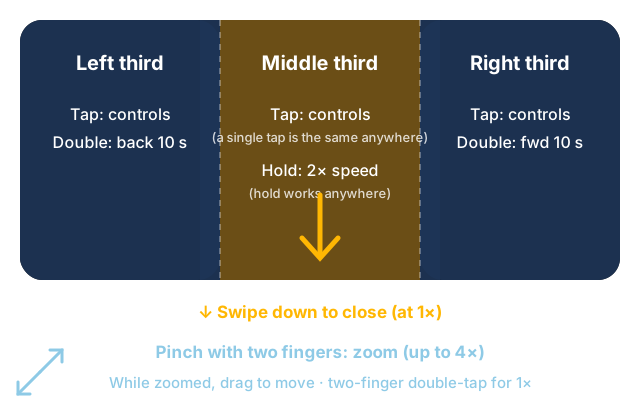
A single tap anywhere shows or hides the controls. Double-taps depend on the side.
| Gesture | Action |
|---|---|
| Tap (anywhere) | Show / hide the controls (does not play or pause) |
| Large buttons in the center (while the controls are shown) | ⏮ Previous file / ▶︎ Play · ⏸ Pause / ⏭ Next file |
| Double-tap the left | Back 10 seconds (keep tapping for 20, 30…) |
| Double-tap the right | Forward 10 seconds (keep tapping for 20, 30…) |
| Touch and hold (anywhere) | 2× speed while you hold. Back to normal when you let go (while playing) |
| Pinch with two fingers | Zoom in / out (1× to 4×), centered between your fingers. Let go near 1× or near "fill the screen" (no black bars) and it snaps to that size |
| Drag while zoomed | Moves the zoomed picture (it stops at the edges). While zoomed, swiping down does not close the player |
| Double-tap with two fingers | Back to 1×. The zoom button in the controls (for example "2.3×") does the same |
| Swipe down (at 1×) | Closes the player. Pull about a fifth of the screen, or flick quickly. If not far enough, it springs back (does not start on the controls or near the A/B divider) |
When the controls are shown, large Previous File, Play / Pause and Next File buttons appear in the center of the screen. Use them to play or pause. While paused, the controls stay on screen; while playing, they hide after a few seconds. Previous / Next File move to the neighboring video in the folder you opened, in the same order as the list (dimmed at the first or last file). Your position is remembered, so the video resumes where you left off next time. Photos, URLs, single files opened with Open File, and videos opened from Recent or Favorites have no Previous / Next buttons.
The top row has × (close); while zoomed, a zoom button (tap for 1×) appears there too. The bottom row has a seek bar, back / forward 10 seconds, ★ (favorite, only when you opened a video), Picture in Picture and ✨ (Picture). Upscaling and super resolution work on the part of the picture you see while zoomed.
Picture settings
Tap ✨ to open the picture settings.
| Setting | What it does |
|---|---|
| Natural (default) | Natural brightness. Hard to break |
| Vivid | Keeps colour strong in bright areas |
| Brighter, as is | Same contrast, lifted to the screen's full brightness |
| No conversion | Shows the source as it is |
| A/B compare | Left: current preset, right: no conversion. Drag the divider |
| Upscale to screen resolution | When the video is smaller than the screen, scales it to the screen's native resolution |
| Frame interpolation | Smooths motion. On by default (you can turn it off in the Picture settings). When active, the output frame rate appears on screen, e.g. "Smooth 120fps". If unavailable, the reason is shown |
| Interpolation priority | Choose Resolution priority (default), Smooth priority or Ultra smooth priority (see below) |
| Audio & subtitles | Choose the audio track and subtitles |
| Now | Headroom (how many times brighter than normal white, e.g. ×8.0), source resolution, output resolution and screen refresh (Hz) |
Interpolation priority
The app always outputs the highest frame rate it can keep up with for that video and mode. The ceiling matches your screen's maximum refresh rate (120 fps on a 120 Hz screen; 60 fps on a 60 Hz screen or in Low Power Mode). The output is one of the rates that divide that ceiling evenly (120, 60, 40, 30, 24 on a 120 Hz screen), and interpolation only raises the frame rate above the video's own — never below it.
| Mode | Interpolation resolution | Typical on iPhone 17 Pro Max |
|---|---|---|
| Resolution priority (default) | The video's own resolution (never scaled down) | 120 fps up to 720p, 60 fps at 1080p. 1440p and 4K are not interpolated |
| Smooth priority | Up to 1080p (larger videos are scaled down) | 4K and 1440p at 60 fps |
| Ultra smooth priority | 720p | 120 fps. 10-bit HDR videos are interpolated in 8-bit (gradients may band slightly) |
When the device gets hot or can't keep up, the app first lowers the frame rate one step (120→60→40), then (in Smooth and Ultra smooth priority) the interpolation resolution, and finally turns interpolation off. In Low Power Mode, interpolation and super resolution pause (the app tells you so). Colour conversion never pauses.
Experiment: on devices whose screen's maximum refresh rate is 120 Hz, turning on "Try 1080p at 120fps" forces 1080p at 120 fps regardless of budget (it turns off automatically if the device gets hot). It only appears on 120 Hz screens.
Free trial and purchase
- On first launch you will see the 3-day free trial. Tap Start Free Trial to begin
- When the trial ends, playback stops (you can still browse folders)
- To keep using the app, make a one-time purchase. You are never charged automatically
- After changing devices or reinstalling, tap Restore Purchase
Troubleshooting
| Symptom | What to check |
|---|---|
| The server does not appear | Mac and iPhone on the same Wi-Fi? File Sharing on? Use Add Server with the host name (e.g. name.local) or IP address |
| "Loading… the disk may be spinning up" | An external HDD can take a few seconds to spin up |
| A video opened from Files does not start right away | Videos in cloud storage (iCloud Drive etc.) download fully before playing. Large videos can take a while |
| "Could not get the file. Check the network, or open the storage app (such as Google Drive) and make the file available." | Check the network, or open the cloud storage app and make sure the file is downloaded there |
| Playback stopped and Try Again appeared | The connection dropped. Try Again reopens from the same position |
| "This video needs more than the network provides…" | The video's data rate exceeds your Wi-Fi speed. Move closer to the router, or serve from a wired Mac |
| The picture does not get brighter | At maximum brightness some devices leave no HDR headroom. Lower it slightly |